Your AI desktop companion.
Screenshot anything on your screen, ask a question, get answers from Claude, GPT, or local models. With a cute pixel art pet that lives on your desktop.
COMPANIONS
Meet Max.
Your AI companion comes with a pixel art pet that lives on your desktop.

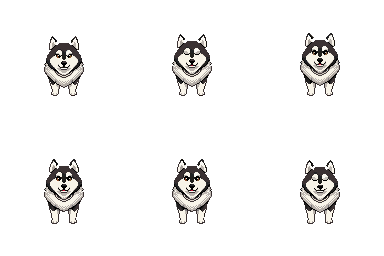
A cheerful Samoyed with white wings. Walks beside you, flies to help, and barks when he gets it right.
See the others +
-

Sky
A gray tabby who'd rather loaf than walk. Elegant, slightly judgmental, here for the conversation.
-

Lexi
Golden fur, golden heart. The eternal optimist who's just happy to be included.
-

Rover
Always on a mission. Trots across your screen with somewhere important to be.
-
Paris
Huge, stylish, and convinced she runs the place. She does.
More companions coming soon.
HOW
How it works.
- 1

Screenshot
Press Ctrl+Option to fly Sato to your cursor. Select any region of your screen.
- 2

Ask
Type your question in plain English. Or press Tab to open a full chat.
- 3

Answer
Get a streaming response from Claude, right where you're working.
FEATURES
Built for real work.
-
Choose Your AI
Anthropic, OpenAI, or Ollama. Switch providers anytime, no reinstall. Run local models fully offline if you want.
-
Readable Math
Equations show up typeset like a textbook, not as a jumble of LaTeX symbols.
-
Context Profiles
Teach Sato about your project once. It remembers every session.
-
Chat Sidebar
Need to dig deeper? Open a full conversation with the original screenshot.
-
Stealth Mode
Hide the sprite when you want. The AI still works with one hotkey.
-
Thousands of Companions
Start with Max, Sky, Lexi, Rover, or Paris, or browse community pets from Petdex.
-
Battery-Saving Sleep
Sato dozes into a stationary animation, then fully sleeps when your Mac is inactive.
-
Works Everywhere
Any app, any window, any screen content. If you can see it, Sato can help.
-
Open Source
MIT licensed. Fork it, extend it, make it yours.
INSTALL
Get started.
- 1
Download Sato from the GitHub releases page.
- 2
Move Sato.app to your Applications folder.
- 3
Grant Accessibility and Screen Recording permissions on first launch.
- 4
Pick your AI provider (Anthropic, OpenAI, or Ollama) and paste your API key. Or run Ollama locally for fully offline use.
- 5
Press Ctrl+Option anywhere to summon Sato.
Requires macOS 14.2 or later. Free and open source.
FAQ
Questions.
Is it free?
Yes, Sato is free and open source. You pay your AI provider directly for API usage (Anthropic, OpenAI, or Ollama Cloud), which typically costs pennies per question. Or run Ollama locally for completely free use.
Does it work on Windows or Linux?
macOS only right now (14.2 or later). If there's enough interest, cross-platform support is on the roadmap.
Is my screen data private?
Your screenshots go directly from your machine to whichever AI provider you've chosen. Sato doesn't have a server and doesn't see your data. If you run Ollama locally, your screen data never leaves your machine at all.
Which AI providers does Sato support?
Anthropic (Claude Opus, Sonnet, and Haiku), OpenAI (GPT-6 Luna and GPT-5.6 Terra), and Ollama (local or cloud). Pick a default in settings, choose how much effort each model puts into its answers, and override per Context Profile if you want different models for different tasks. All API keys are stored securely in macOS Keychain. No middlemen.
Who built this?
Built by Amir Valizadeh, a CS student at the University of Pittsburgh. The code is open source on GitHub. Inspired by Clicky by Farza Majeed.
Can I add my own sprite?
Yes. Choose one of Sato's five built-in companions or open Custom sprites to browse, search, and filter thousands of community pets from Petdex.
Questions or feedback? Email me or reach out on X .